Development Paused
Due to time constraints, further development of FASPIT has been paused. Future work will focus on converting it into an open source, Markdown-based tool.
Walkthrough Video
Video walkthrough coming soon.
Getting Started
Welcome to FASPIT — the anti-bloat project management tool for freelancers and small to medium businesses.
Everything revolves around your tasks. Start by creating a client, then a project, and add tasks within it. From there you can track work, log time, and generate invoices. This guide walks you through the essentials.
Install the App
FASPIT is a Progressive Web App (PWA) — install it directly from your browser for a native app experience. Native app store listings are on the roadmap, but building and maintaining separate native versions requires significant development time, and both the App Store and Google Play take a 15–30% cut of all subscription revenue — cost that would ultimately be passed on to users. The PWA delivers the same experience without those trade-offs in these early stages of the platform.
Desktop
In Chrome, Edge, Brave, or Vivaldi, look for the install icon in the address bar (a monitor with a down arrow) or check the browser menu for an “Install app” option. Click it, confirm, and the app will appear in your system’s app list — pin it to your taskbar or dock for quick access.
In Safari on macOS (Sonoma or newer), go to File → Add to Dock. The app icon will appear in your Dock and Applications folder.
Mobile
On Android (Chrome, Brave, Vivaldi, or other Chromium browsers), tap the install prompt when it appears, or open the browser menu and choose Install app or Add to Home screen. Confirm, and the icon appears on your home screen and app drawer.
On iPhone or iPad, open the site in Safari, tap the Share button, then select Add to Home Screen. The app will appear on your home screen like a native app.
Set Up for Invoicing
Before diving into tasks and projects, make sure your company details are complete in Settings — this populates your invoices with the correct business name, address, tax info, invoice prefix, default payment terms and rounding.
Next, add your clients with full details: name, email, billing address, and any custom terms. Accurate client info keeps invoicing smooth and avoids back-and-forth.
When adding clients on the Clients page, customize their billing method in the details modal. Choose hourly (track time at set rates), fixed (flat fee per project), or retainer (recurring monthly terms) to match how you bill. This setting flows through to proposals, time logs, and invoices automatically.
Home Dashboard
Find information at a glance. The Home screen is a widget-based dashboard — rearrange and resize widgets to suit your needs according to your priority.
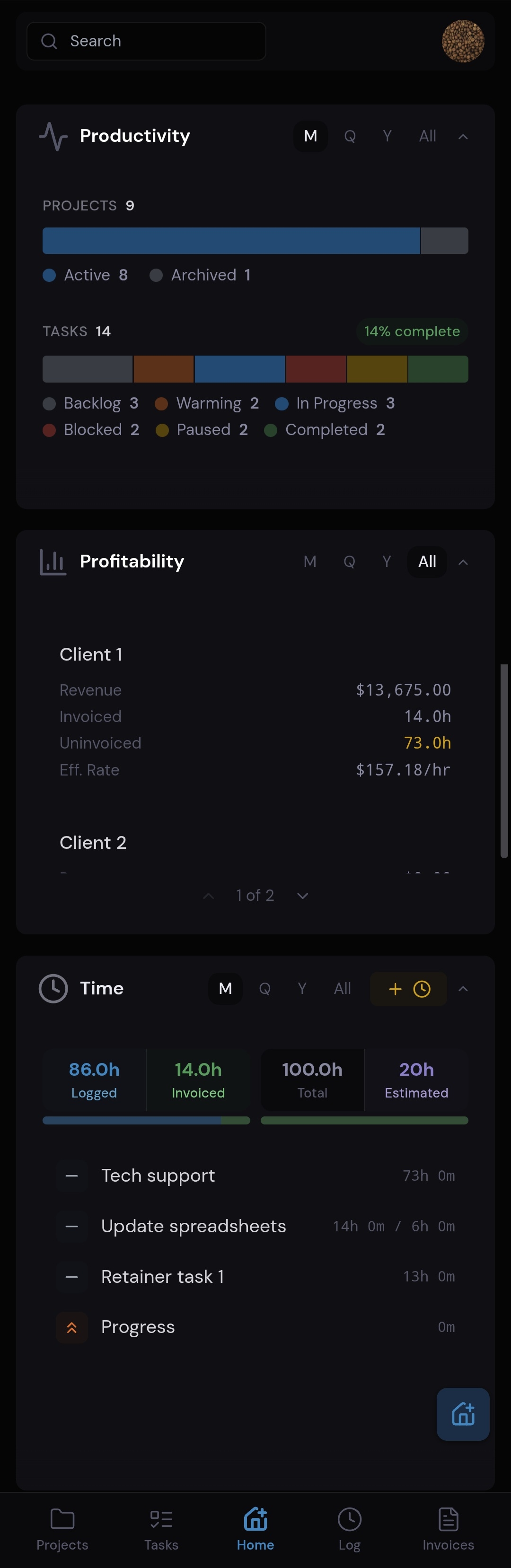
- Productivity — See where your workload is at: what is blocked, on backlog, warming, in progress, paused, and completed.
- Profitability — See how your work is panning out for each client with cost benefits to help adjust contracts and negotiations.
- Project Hours — Hours breakdown across projects.
- Clients — Active client count and status.
- Projects — Active and completed projects overview.
- Tasks — Task status distribution at a glance.
- Time — See what you have logged, invoiced, total, and estimated. Filter for the month, quarter, year, or see all.
- Invoices — Outstanding and paid invoice summary.
- Leads — Current lead pipeline.
- Proposals — Proposal status overview.
Power Menu
Open from anywhere: Ctrl+K on desktop or long-press Home on mobile and desktop.
| Key | Action |
|---|---|
| 1 | Search |
| 2 | Filter |
| 3 | Timer |
| 4 | Log |
| 5 | Task |
| 6 | Client |
| 7 | Project |
| 8 | Invoice |
| 9 | Proposal |
| 0 | Lead |
How-To Guides
Step-by-step walkthroughs for the core workflows.
Add a Client
- Hold on Home and select Client — 6, or tap Home+ and select Client — 6.
- Enter client details — make sure they are accurate and detailed. This information shows up on your invoices and determines which Point of Contact receives them.
- Set the billing type: Hourly, Fixed, or Retainer.
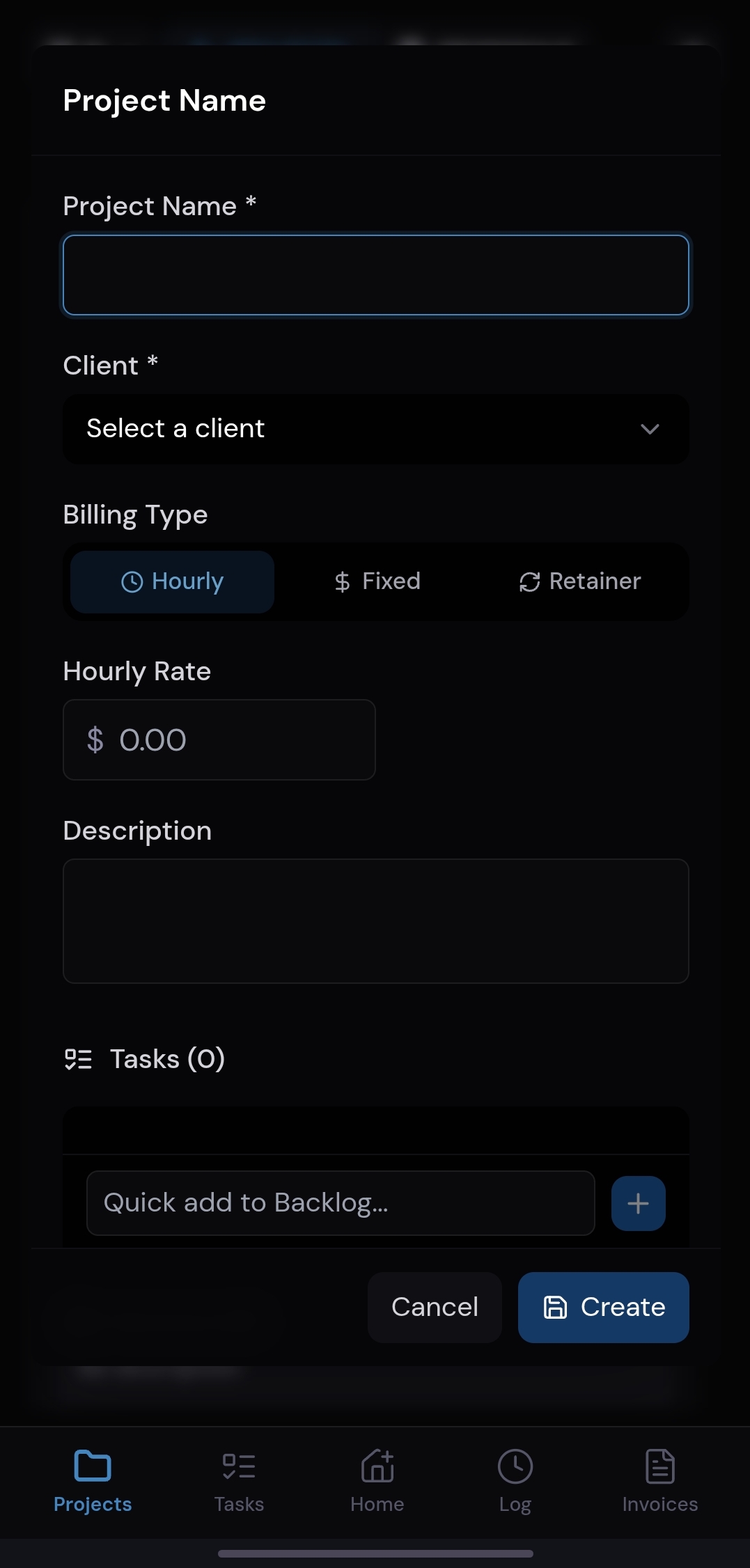
Add a Project
- Hold on Home and select Project — 7, or from the Projects tab tap +.
- Enter project details: project name, select the client, and select the billing type.
- Add a description, tasks, and/or services relating to the project.
Add a Task
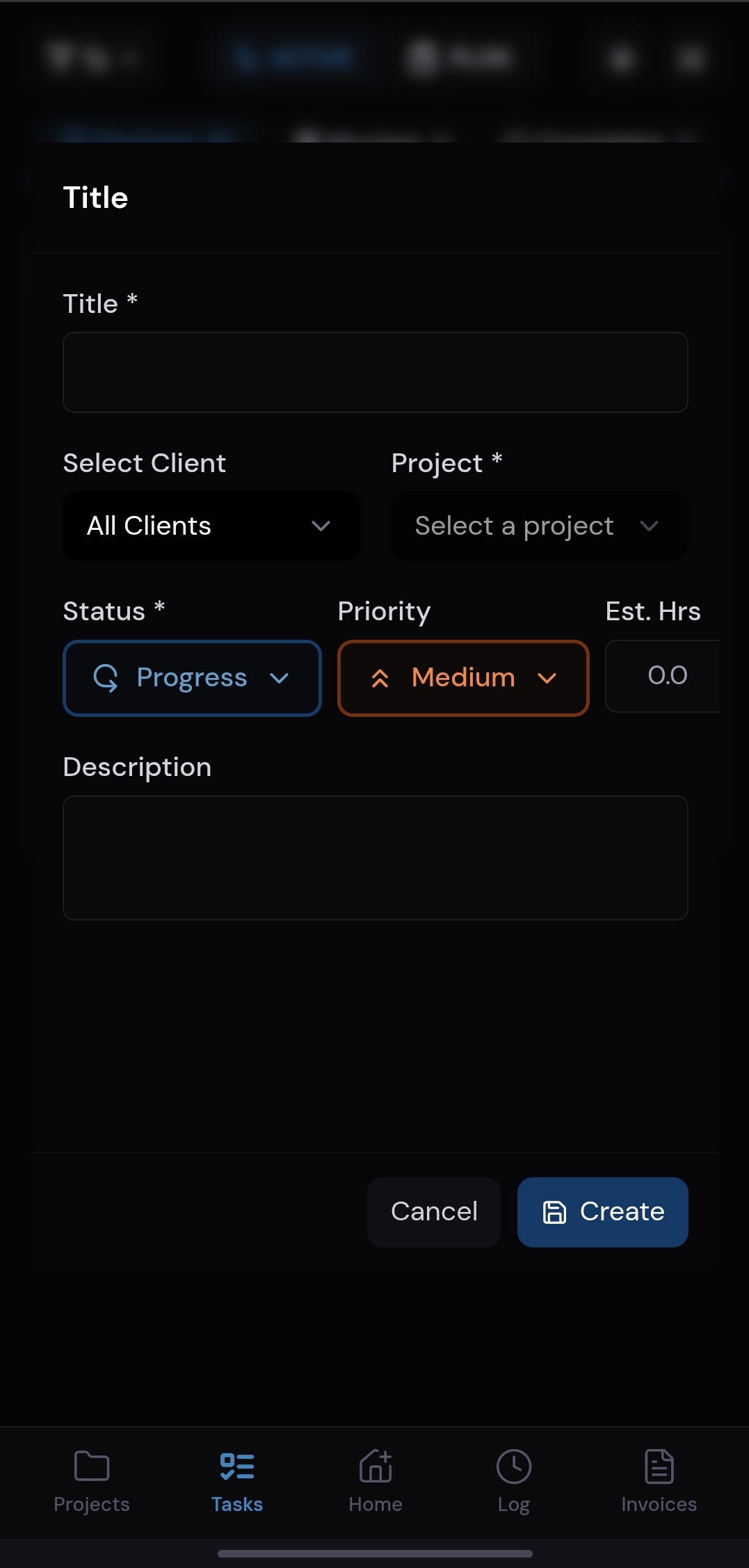
- Hold on Home and select Task — 5, or from the Tasks tab tap +.
- Enter task details: task name, select the client and project.
- Select the status phase to start your task in:
- Backlog, Warming, Progress, Blocked, Paused, or Completed
- Tasks automatically enter Progress if not selected.
- Select priority: None, Low, Medium, or High.
Log Time
There are several ways to log time:
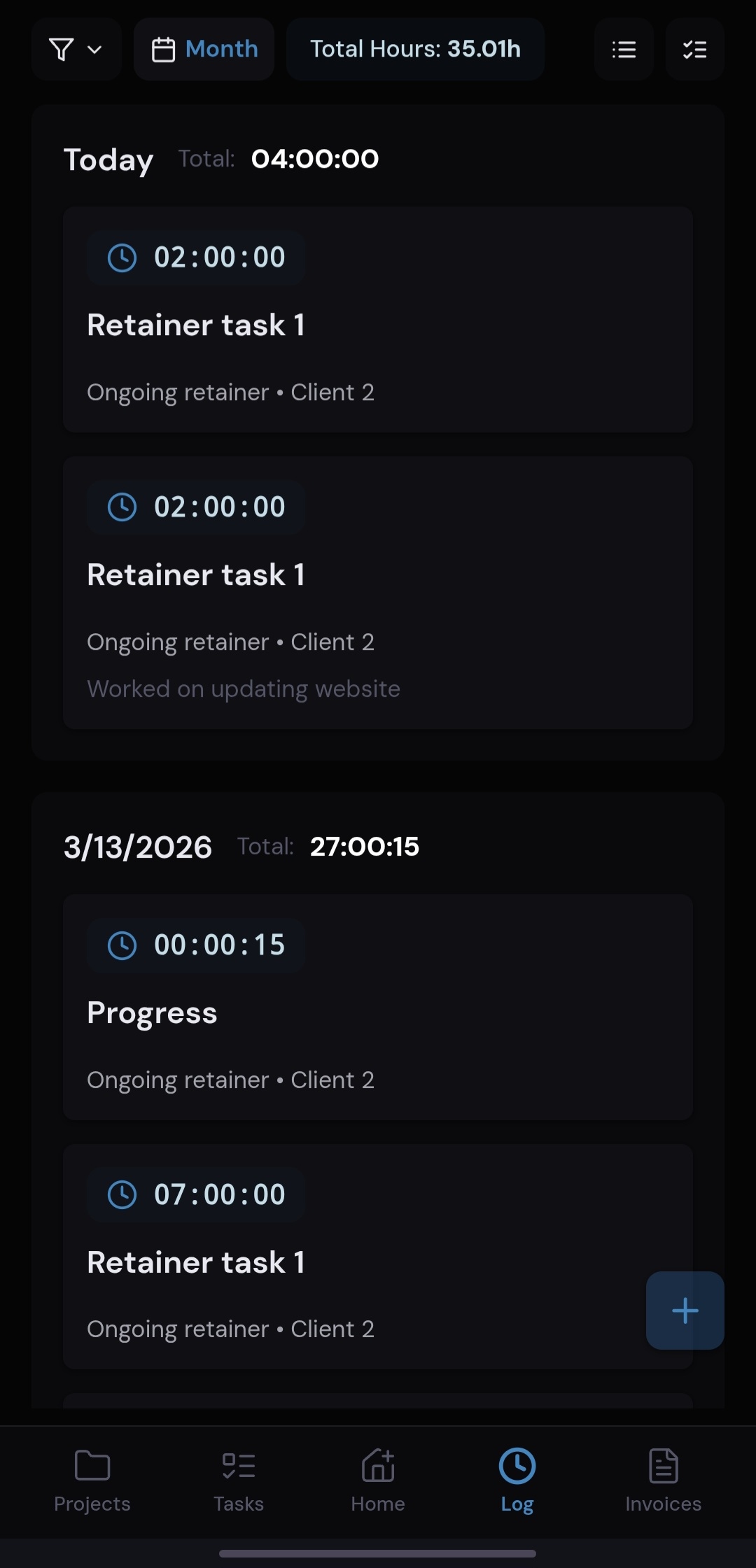
- Quick log — Hold on Home and select Log — 4, or from the Log tab tap +.
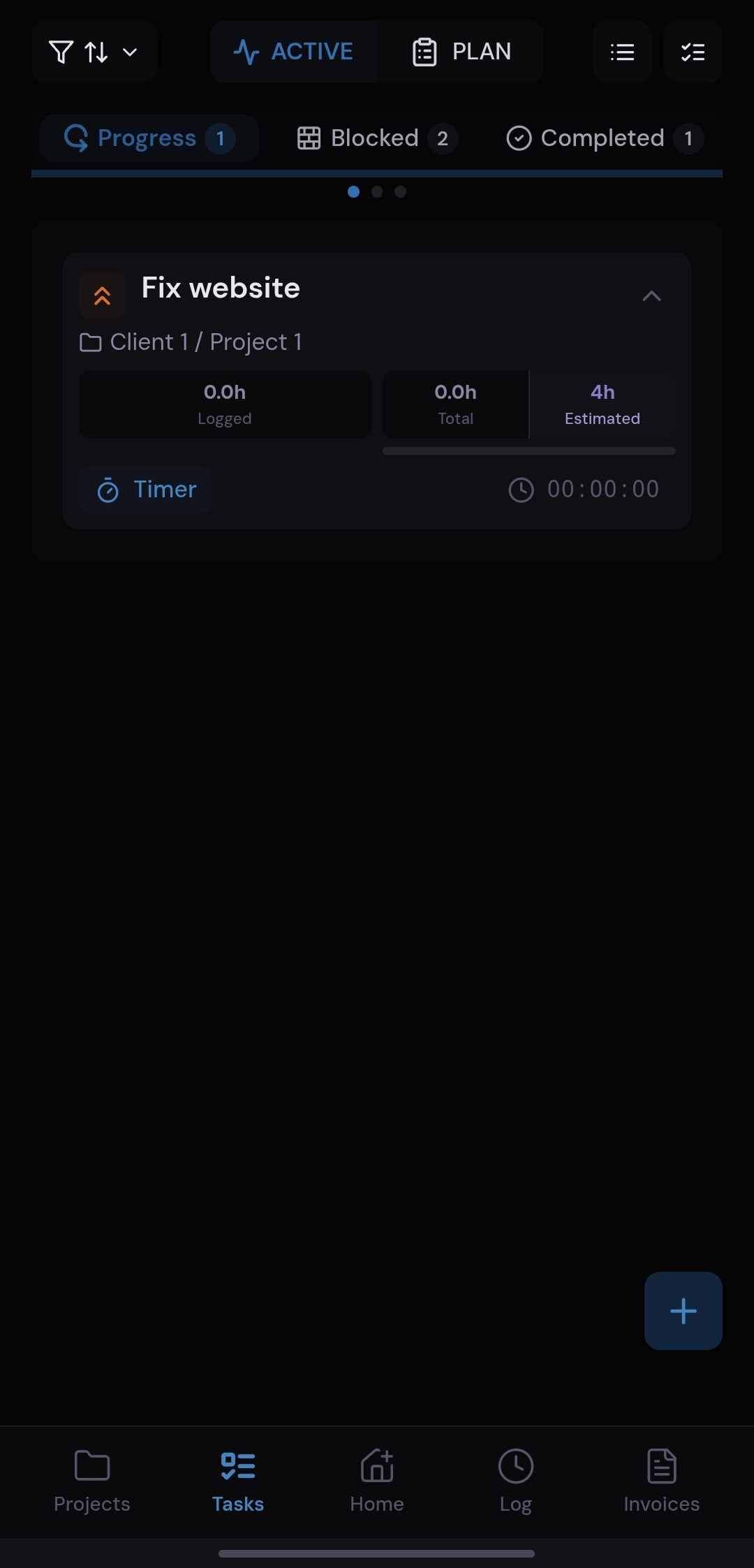
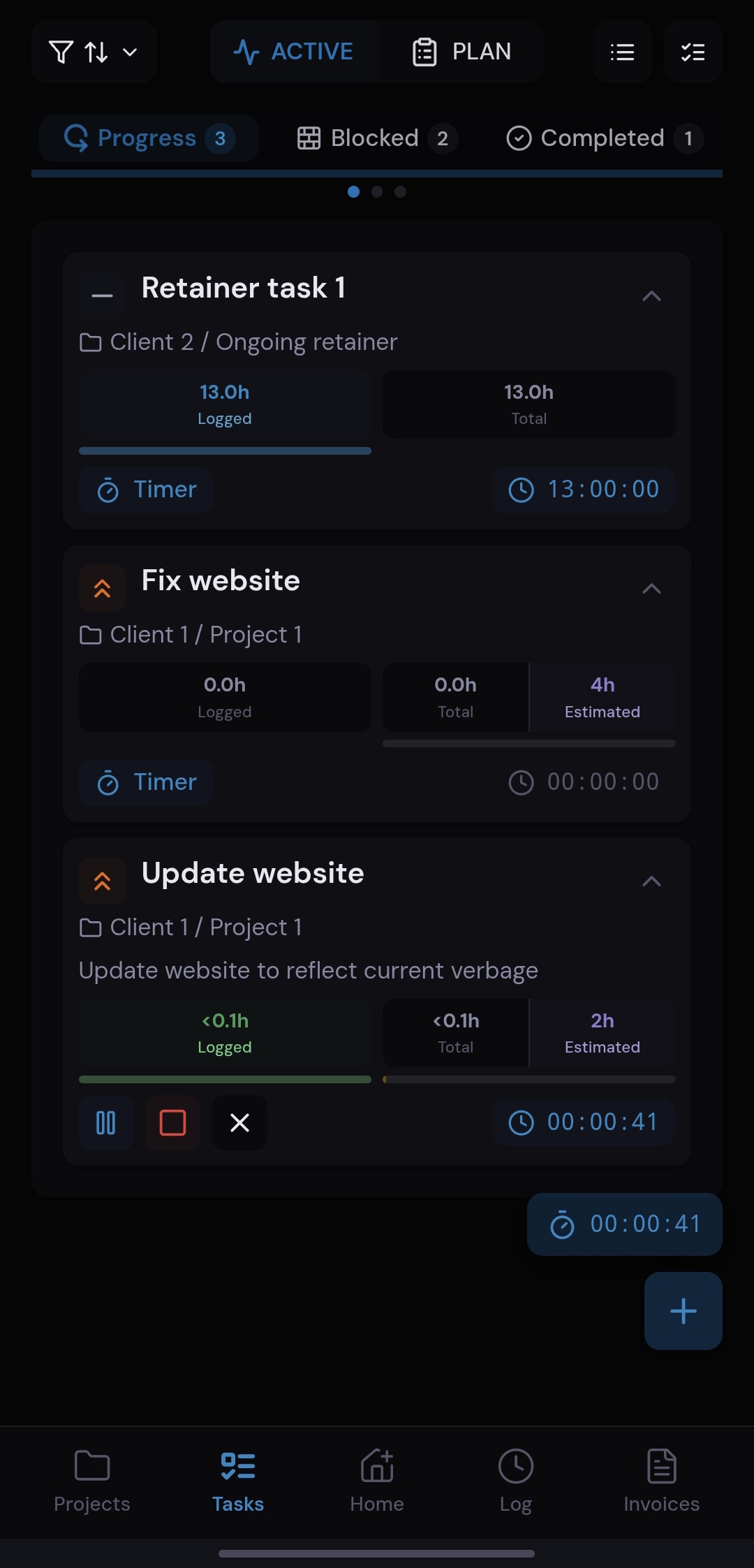
- Timer on a task — From the Tasks tab, tap the timer icon on any task to start tracking in real time. This automatically logs time to the appropriate task.
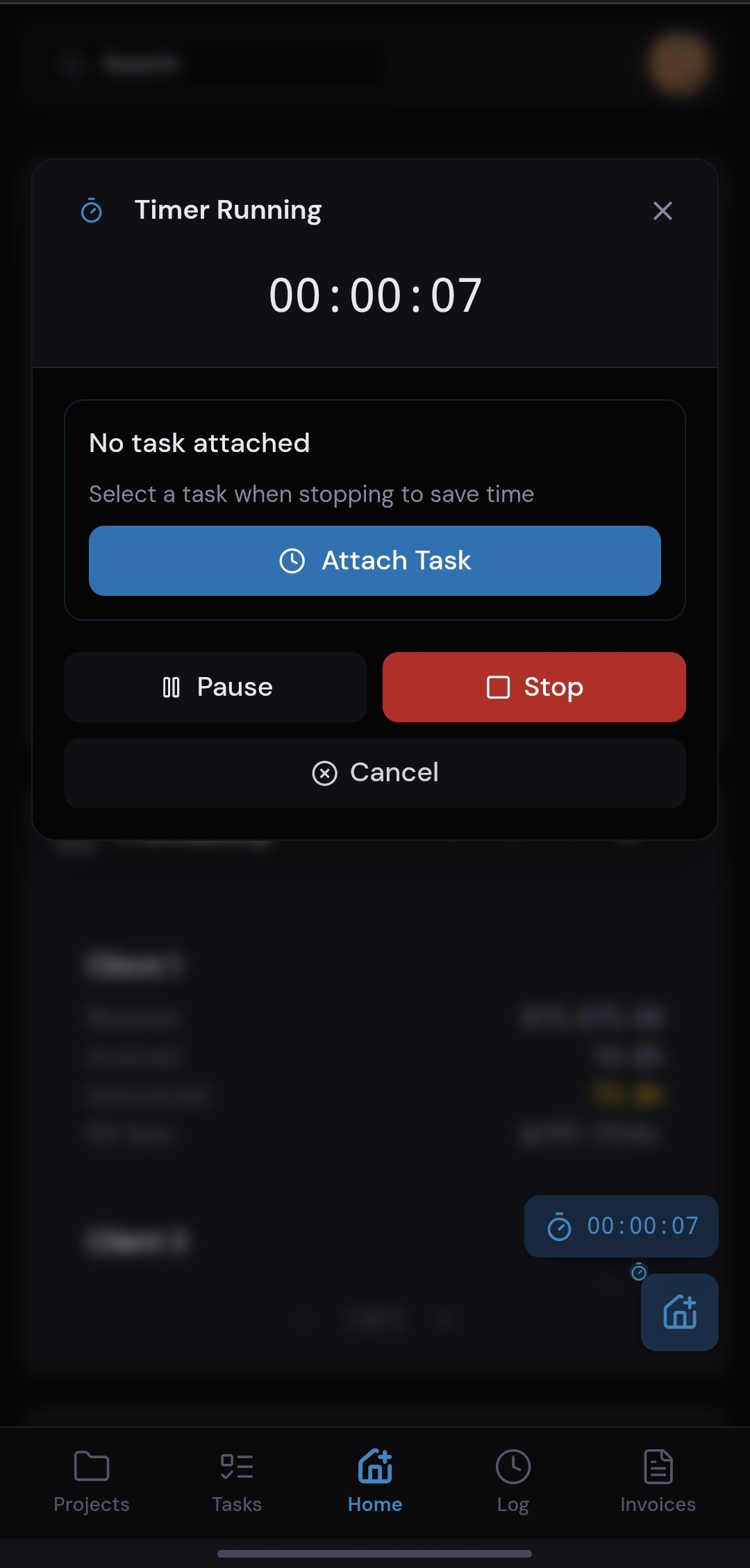
- Global timer — Hold on Home and select Timer — 3 to start a timer from anywhere.
Create an Invoice
- Hold on Home and select Invoice — 8, or from the Invoices tab tap +.
- Name the invoice, select the client.
- Choose any or all projects worked on.
- Optionally itemize tasks on the invoice — select tasks and choose how to round hours logged, mark pro bono services, or include log notes from each task.
- Add Custom Line Items for any purchases to charge the client directly.
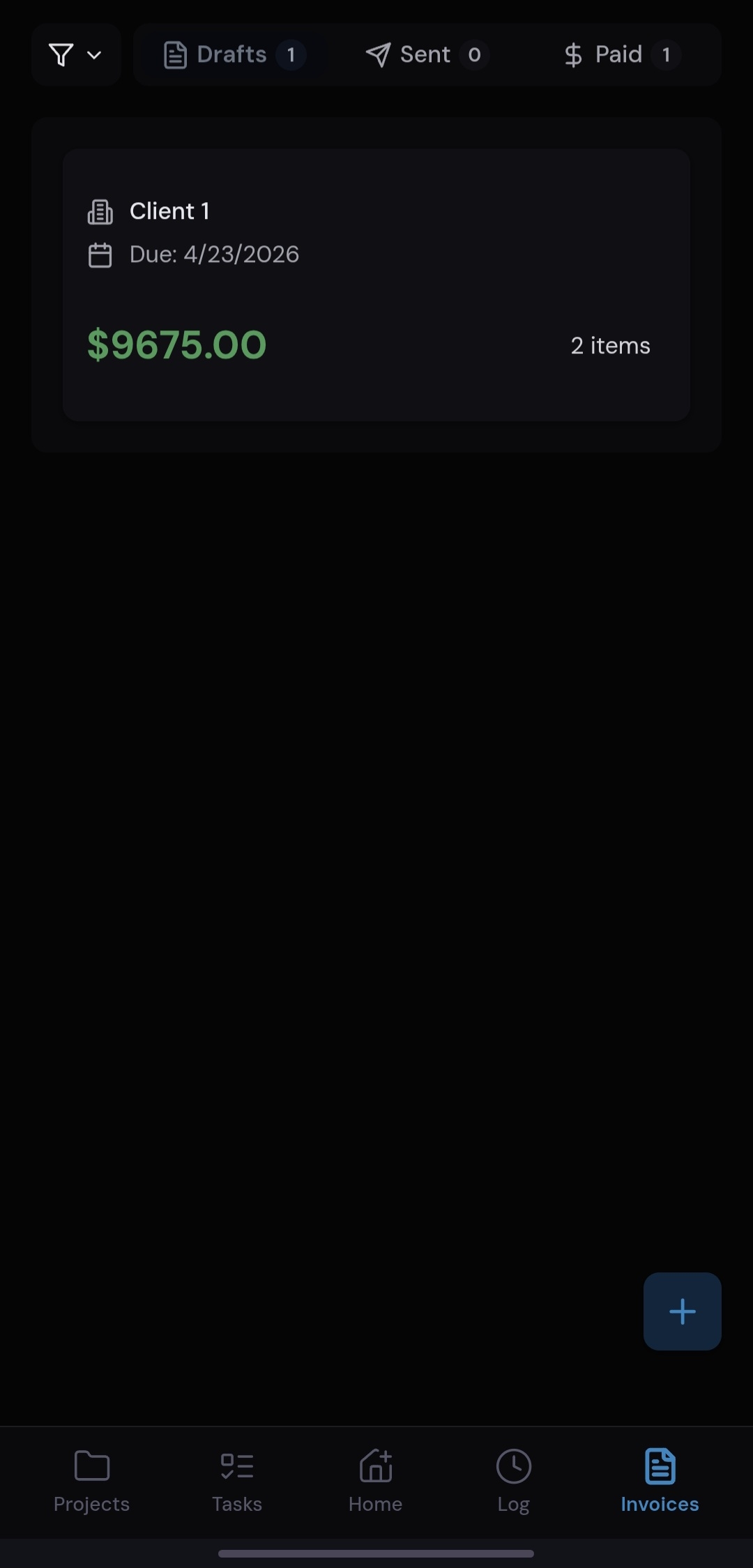
- Save as Draft.
- Add additional project items to the draft invoice before it is sent for the billing cycle.
- Email or Convert to Sent — this automatically archives log times to start fresh for the new billing cycle.
Extras
Leads — Add a lead with notes on inquiries. Hold on Home and select Lead — 0.
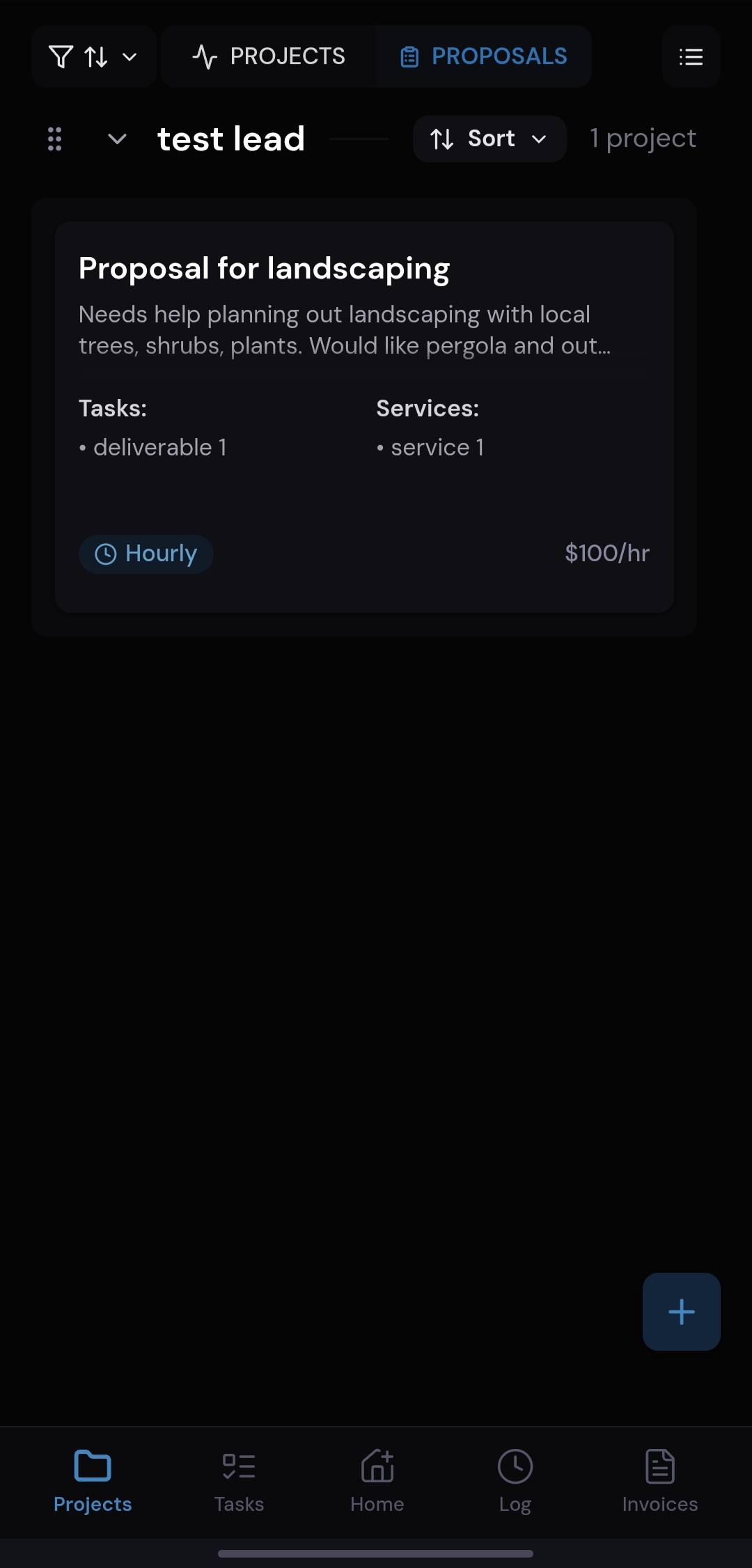
Proposals — Add a proposal to any lead or client. Hold on Home and select Proposal — 9, or from the Projects tab select the Proposals page and tap +.
Filter — Hold on Home and select Filter — 2. This filters by client app-wide across tasks, projects, time logs, and invoices.
Search — Hold on Home and select Search — 1. This searches app-wide for keywords.
Tips & Extras
Custom Invoice Numbers
Set unique invoice numbering per client from their details modal on the Clients page (e.g., “ClientA-001”). This auto-applies to all future invoices for that client. Also, in the “Company settings” you can set a default company prefix to the numbering.
Time Logging Options
Log time from three places: the dedicated Log Time page, directly on any task detail view, or via the app-wide timer at the top of the interface. Pick whatever fits your workflow.
Light/Dark Mode
There are three options! Light, Dark (softer gray), and Black (not AMOLED but very dark). The app defaults to the softer gray so users are not flashbanged on opening the app for the first time. Once you change it to your preference, it will remember across devices and sessions.
FAQs
Why is there no Sign in with Apple?
FASPIT supports Sign in with Google, GitHub, and Discord at launch — all free to implement. Apple charges a $99/year developer program fee just to offer Sign in with Apple, even for bootstrapped products. We’re not opposed to it; it’s purely a cost decision while FASPIT is self-funded. As the app grows and native iOS support is built out (which requires the Apple developer program anyway), Apple Sign-In will be added at the same time. It’s on our Planned roadmap.
Why is a credit card required for the trial?
FASPIT no longer offers a free tier. Requiring payment details upfront helps us maintain a community of serious users, reduces spam signups, and ensures seamless billing when your trial ends. Also FASPIT is fully bootstrapped with no outside funding or investors. Every subscription directly funds development, infrastructure, and support. When you pay for FASPIT, you’re not enriching a VC round — you’re keeping an independent product alive and growing. We’re grateful for every user who chooses to support that.
Where can I find support?
Documentation will continue to grow based on user feedback. For the fastest help, join our Discord server — it’s the primary channel for support, feature requests, and community discussion. You can also follow us on X for updates, and video tutorials are coming soon on YouTube.
How do I report a bug or request a feature?
The best place is our Discord server. Post in the appropriate channel and we’ll respond directly. You can also reach us on X.